What Do You Get When You Use the Respond App?
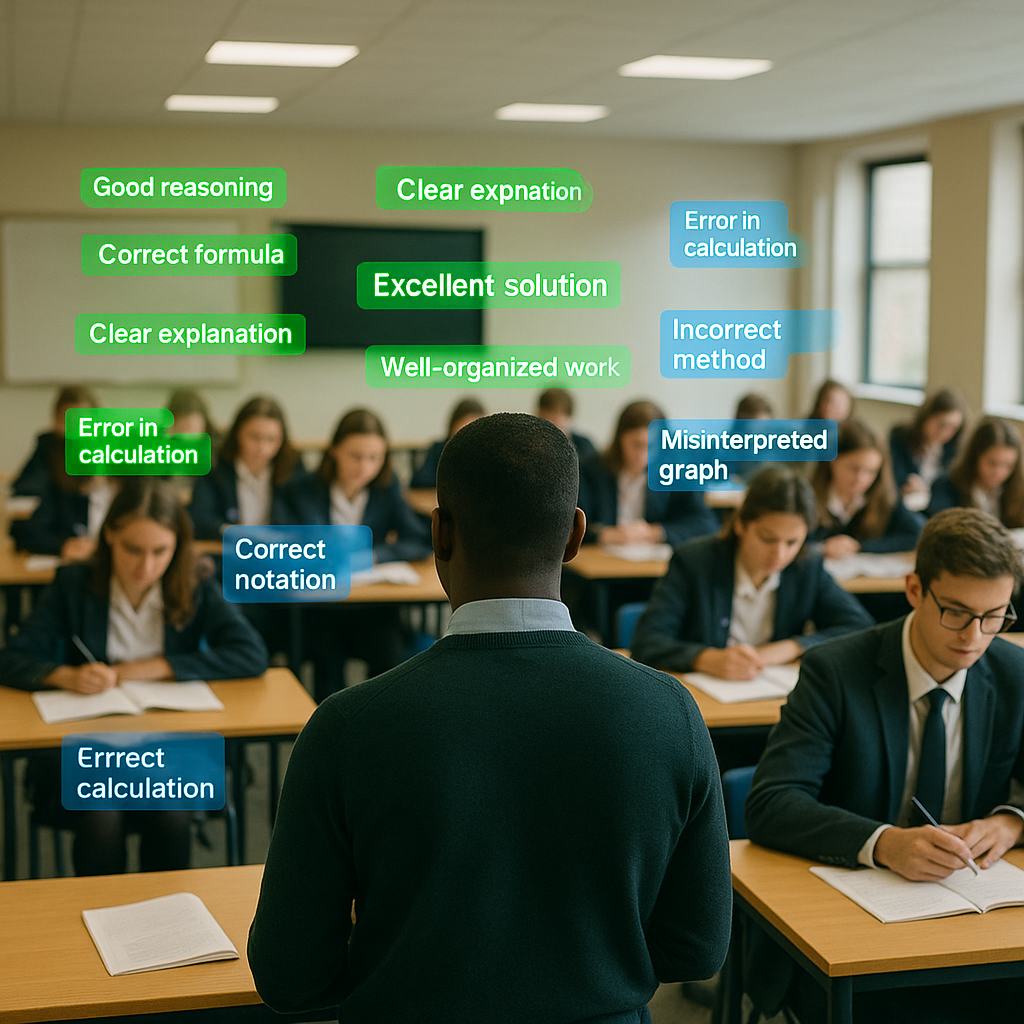
What actually happens after you press Submit?
Teachers always ask two things: what actually happens after I press submit, and what do I get back at the end?
This post shows you the exact experience and outcomes, so you know what it feels like to run a full class through Respond before you ever upload a script.
The short version
If you just want the shape of the workflow, it comes down to four steps.
- Upload: question paper, mark scheme, and student scripts.
- Interpret: Respond builds a structured model of the exam.
- Mark: every student is processed with sub-question justification.
- Reports: you receive student reports and class analysis you can use immediately.
After you hit “Submit + Mark”
The moment you press submit, the app takes you to a Project Page — your command centre for the run.
- See the uploaded documents and artefacts.
- Watch each marking phase progress with timestamps.
- Track the current status of every student.
- Review the live activity log so you always know what the system is doing.
Processing time: what to expect
Under the hood the workflow has two major blocks of work. They are intentionally paced for reliability while we onboard early users, even though the app is doing the hard work for you.
1. Understanding the question paper and mark scheme (≈20–30 minutes)
Before any student script is marked, Respond deeply studies the materials you uploaded so it can model the mark scheme with fidelity.
- Parsing the full structure of the paper.
- Identifying every sub-question correctly.
- Interpreting diagrams, tables, and layouts.
- Matching marking points to their respective questions.
- Building a structured internal version of the mark scheme.
2. Marking each student (≈10 minutes per script)
Once the exam is understood, each student is processed independently. Today that averages about ten minutes per script, so a class of twenty-five may take two to three hours — but the important part is that you are not doing the work.
Slow on purpose, invisible to you
While the AI interprets diagrams and evaluates marking points, you are free to focus on anything else. Think of Respond as a background teammate that keeps working while you step away.
- Plan tomorrow’s lesson or mark a different task.
- Print resources or prep the next sequence.
- Have meaningful conversations with students or colleagues.
- Reply to emails without guilt.
- Go home — make dinner, help with homework, or rest.
What you receive at the end
When the run finishes you receive three outputs, each aimed at a different part of the feedback lesson.
- 1. A student-level report for every upload.
- 2. A teacher report.
- 3. A class-level analysis dashboard.
Student reports: deep, specific, personalised feedback
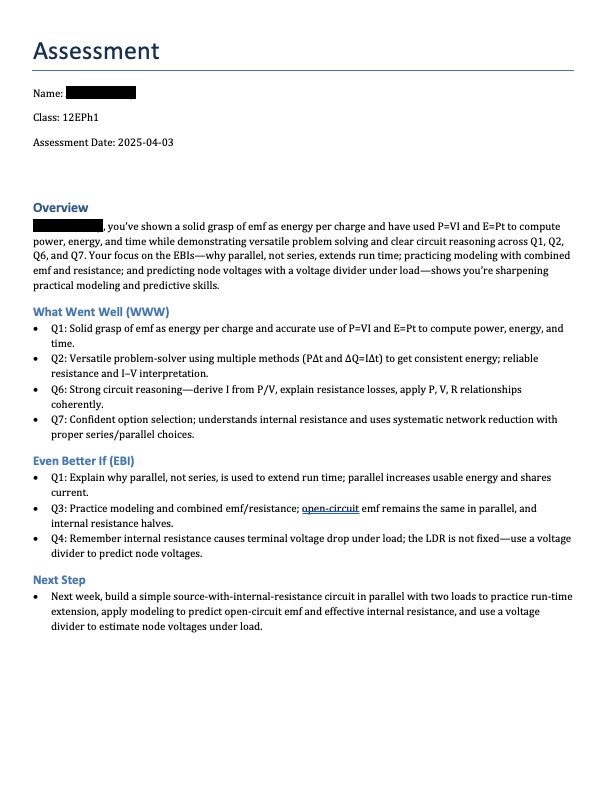
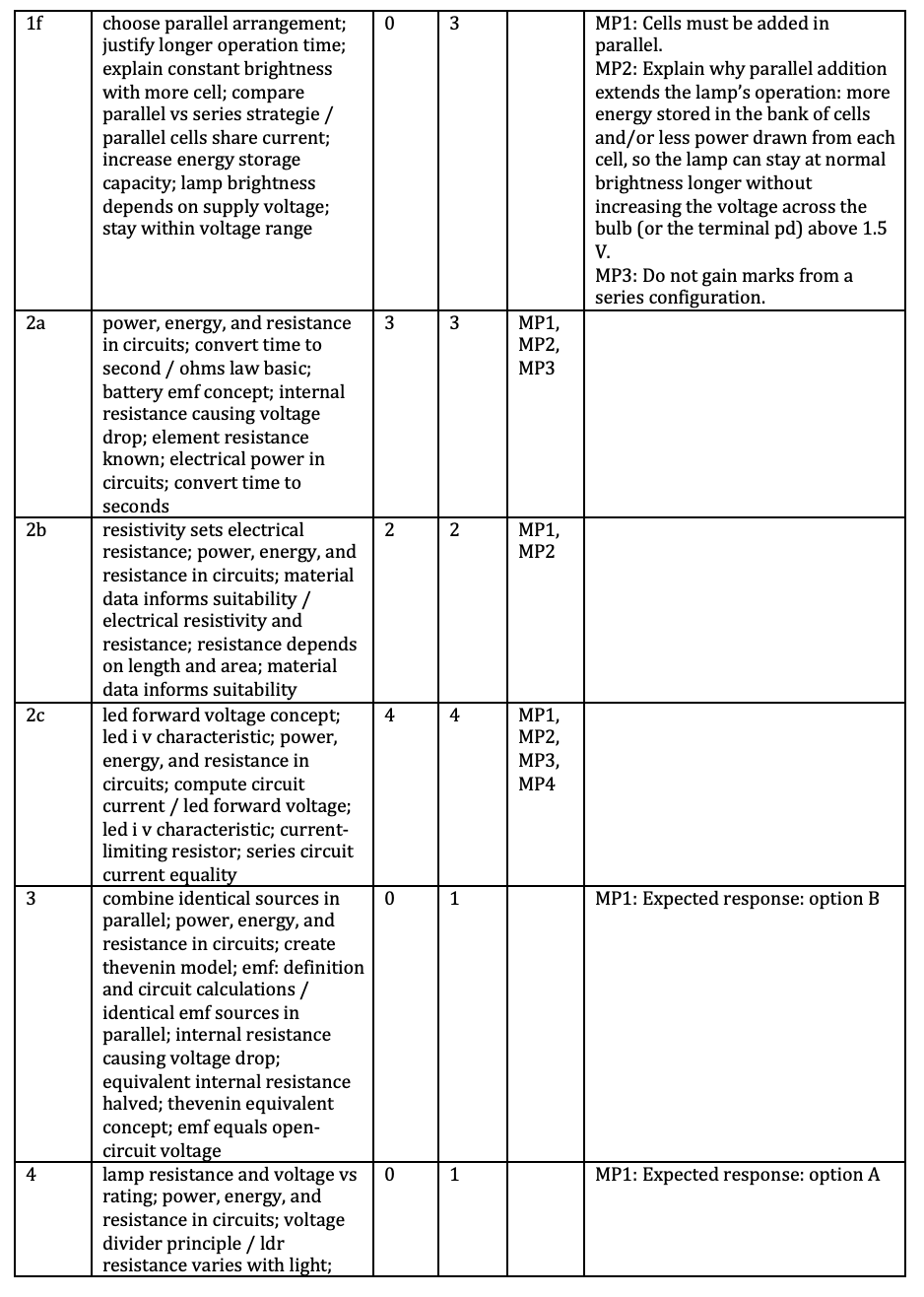
Each student gets a report that is immediately useful in class. It explains exactly what they did well, what needs work, and why.
- Friendly introduction: warm tone that frames feedback as growth.
- Strengths: three or four precise wins tied to specific answers.
- Areas for improvement: targeted guidance linked to the student’s own work.
- Mark-by-mark justification: every sub-question lists the marking point, whether it was achieved, and a short justification from the AI.
How students use their reports
A common first task is simple: take the report and annotate the original script, question by question. Students discover why marks were earned or missed, guided by the explanations instead of passively receiving answers.
The class report: one document, four layers of insight
Alongside individual feedback, you receive a comprehensive Teacher & Class Report that moves through four layers of increasing precision.
Layer 1: Whole-class strengths and weaknesses
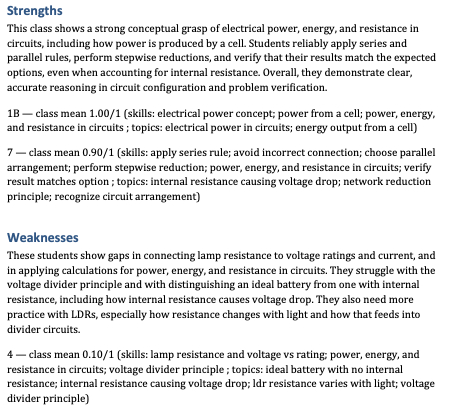
A high-level synthesis grounded in actual marking points shows what the class did well, where they struggled, and the likely misconceptions underneath. It is perfect for planning the first ten minutes of your feedback lesson.
Layer 2: Star moments and opportunities for improvement
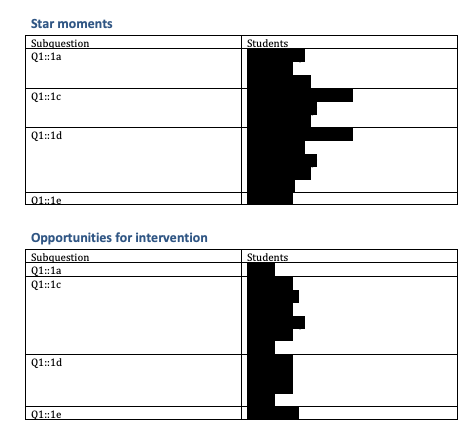
The report then highlights standout responses and near-misses so you can celebrate and intervene precisely.
- Star moments: exemplary answers worth sharing or using as retrieval prompts.
- Opportunities for improvement: questions most students mastered except for a few who need a quick, targeted fix.
Layer 3: Sub-question performance for each student
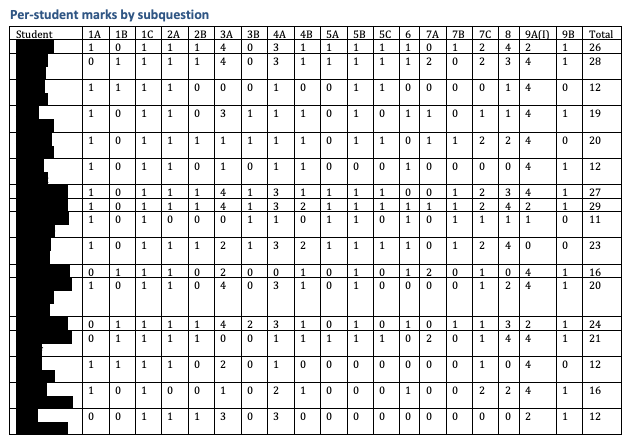
A matrix view shows every student, every sub-question, and the marks achieved. It makes grouping, reteaching decisions, and small-group interventions obvious at a glance.
Layer 4: Skills and topic-level analysis
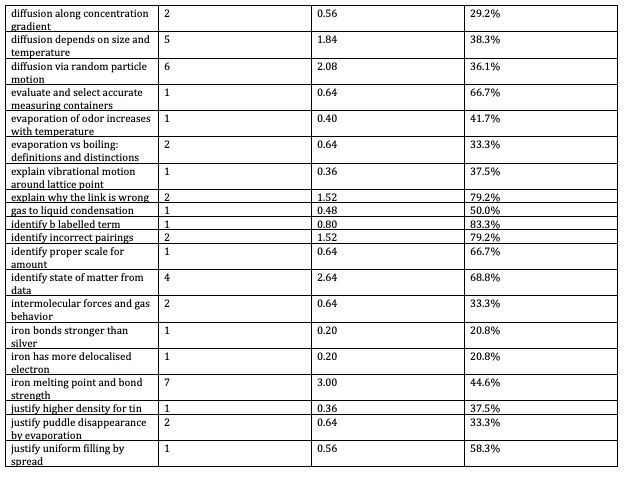
Finally, the report aggregates by skill or topic so you can connect assessment outcomes to curriculum plans. You see total marks, class averages, distributions, and which questions feed each skill.
Before Respond vs after Respond
Sometimes the easiest way to see the value is to compare a typical marking cycle with and without Respond.
- Before Respond: marking takes hours, feedback is slow to reach students, and class insights tend to stay surface-level because there is no time to analyse deeply.
- After Respond: work is done in the background, students get personalised feedback quickly, and teachers get deep class insights that feed straight into the next lessons.
Final thoughts
Respond isn’t trying to replace professional judgement — it amplifies it by handling the heavy lifting and returning richer insight than a human could realistically compile during term time.
You upload scripts, press Mark, and get on with your day. Hours later, you hold the most detailed set of marking insights you have ever had access to.
If you have wondered what using the Respond App really feels like, this is it — and it’s only the beginning.
Key takeaways
- Project Pages keep you informed about every phase of a run while Respond works in the background.
- Preparation currently takes 20–30 minutes and each script about 10 minutes, but none of that time is yours.
- Students receive friendly, specific, mark-by-mark reports that drive meaningful feedback lessons.
- Teachers get a four-layer class report that accelerates planning, reteaching, and parent communication.
Example resources
- Download example student report (PDF) An anonymised sample of the student-facing report format.
- Download example teacher & class report (PDF) A sample multi-layer class report showing strengths, misconceptions, and topic performance.